
Do you sometimes need to use a table in WordPress but it’s too tedious, daunting and just useless to create one with plain HTML? You know that messing with HTML is really time consuming and your own custom table won’t look that good anyway? This post offers you a super easy step-by-step tutorial and a video that explain how to create a neat table in WordPress the hassle-free way.
As everything in WordPress, you need to install a little nifty plugin that allows for easy table creation and management from the comfort of your WordPress dashboard.
The Name Says it All
It’s really easy to use the plugin, but it does have a slight learning curve. Since you’re a busy person like we all are, you want to get to know how to work with the tool as soon as possible, right? And that’s exactly why you may want to watch the video tutorial below.
How to Add a Table in WordPress
In case you prefer to read it in black and white, and go step-by-step, here you go.
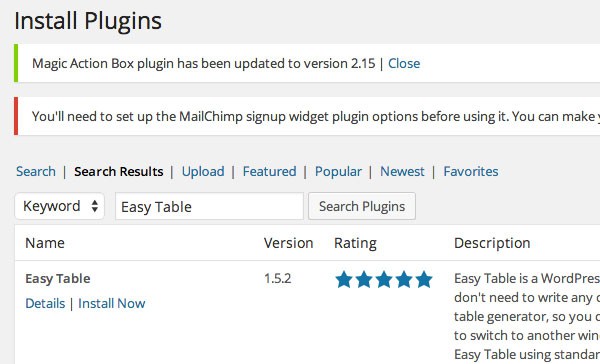
First off, you need to install the Easy Table plugin by Takien.
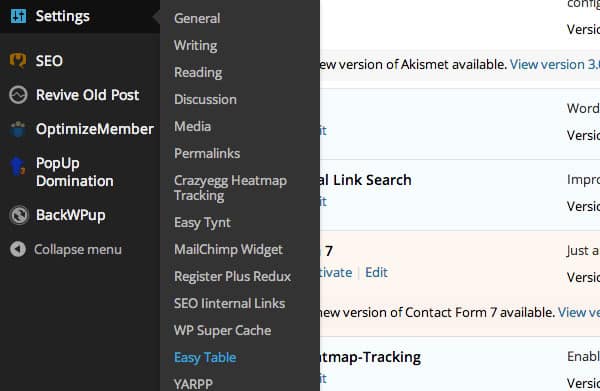
Once you’ve installed and activated your plugin, you just need to expand the Settings drop-down menu and select Easy Table.
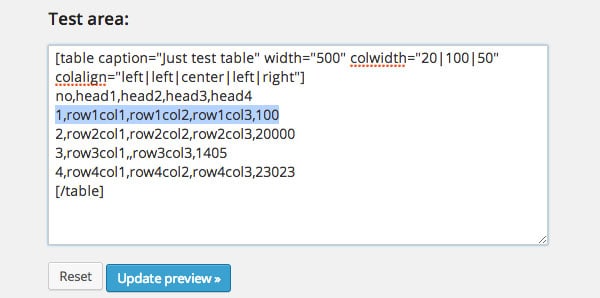
Now you can just enter your data on one line as though you do it in your table row. You just need to separate your entries with commas. It works the same way on the second line, etc.
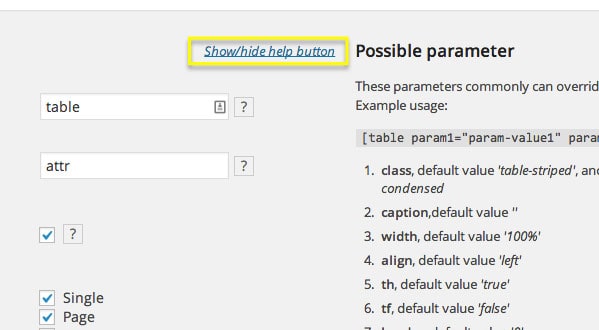
The first thing that you need to pay attention to is the Show/hide help buttons option because it allows to display quick tooltips that give you an idea what that specific option is all about.
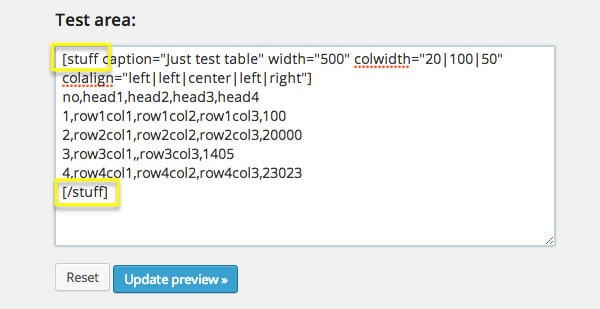
The Short code tag option specifies what should open your table in code. You can replace it with any other word if you wish so. For example, you can replace ‘table’ with ‘stuff’.
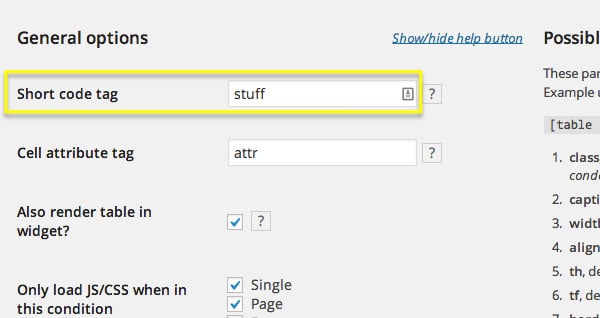
Save your changes. Now you can use ‘stuff’ both in your opening and closing tags in the Test area and in your actual tables.
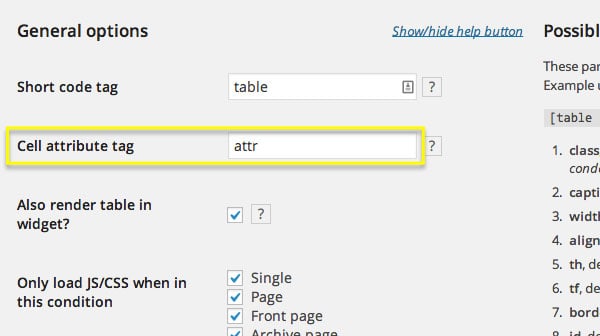
You can use the attr tag to set attributes for your cells, such as style, colspan, rowspan, etc. Just like with ‘table’, you can replace ‘attr’ with any other word and use it instead.
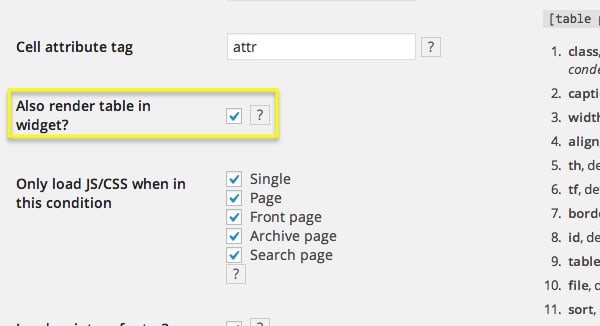
The ‘Also render table in widget?’ option allows you to show your stylish table even in your sidebar. Let’s see how it works. Just tick the checkbox and hit the Save button.
Now copy your table code from the Test area window and go to your widget (Text widget) where you’d like to use it. Now just paste it there and save your modifications. Be sure to place your Text widget with the added code to your sidebar. Now go to your homepage and refresh your browser. At this point, you should see your table in the sidebar. It goes without saying that you still need to tweak the width of the table and stuff like that but you get the point.
Ok, let’s take a look at the rest of the features.
Only load JS/CSS when in this condition – this option defines what kind of content the table plugin must work on. You may want to enable it on all sorts of content because you never know where exactly you may need to use a table.
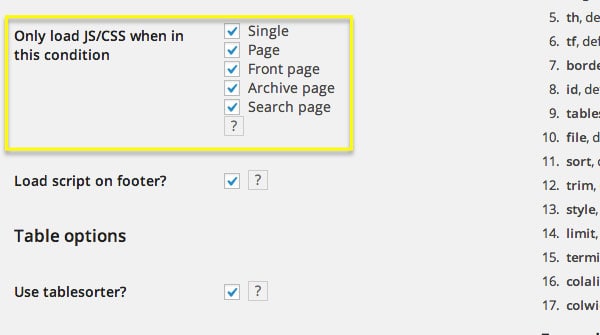
Load script on footer? – Since your JavaScript code loads before the head tag in your HTML page, it slows down your page. Thus the rest of the page does not load as fast as it could. Other than being a mere usability issue, a slow site is a really bad SEO signal, which will definitely contribute to lower rankings for your site. You may need to enable the feature so that the table plugin loads after your actual content. Chances are, you won’t even notice that now your table loads a bit later because you hardly ever place a table in the very top of your content. So, you want to tick it.
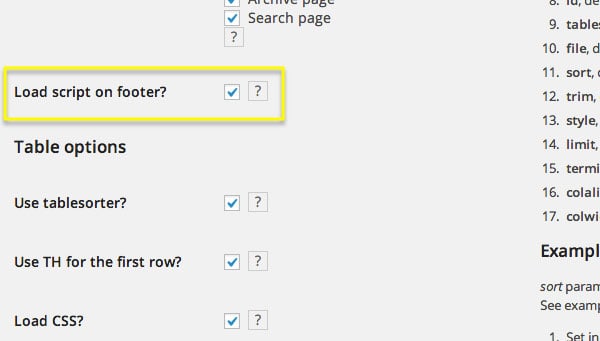
Use tablesorter? allows for sorting your table data. First off, you want to enable the feature by ticking the option here.
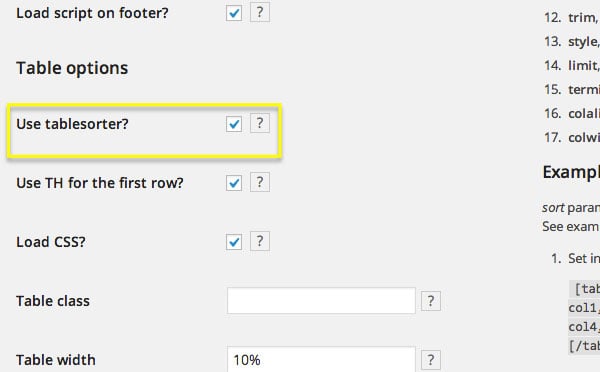
That done, save your modifications. Now you can sort your table data in either ascending or descending order by clicking your table headings.
Use TH for the first row? – You want to keep it unticked if you don’t need table headings in your table. It really depends on the style you stick to. So, it’s up to you.
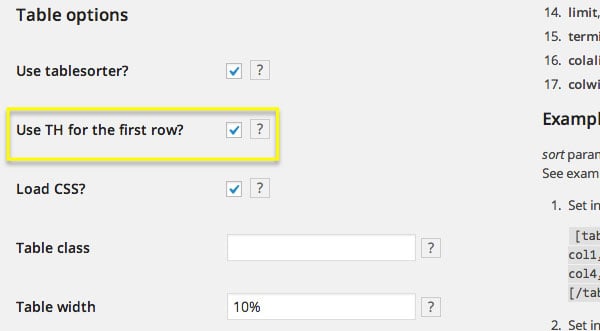
Load CSS? – You need to disable the option if you don’t want to load any CSS with your table. You still don’t want to untick the option if you’re not exactly sure what you’re doing.
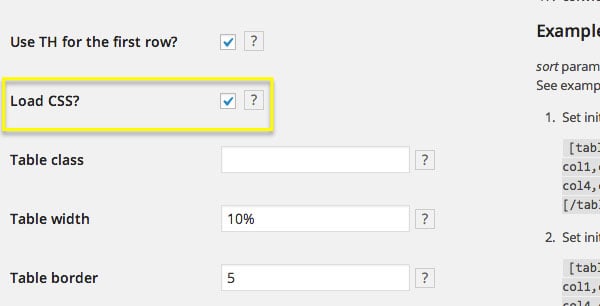
Table class – If you want to use your own class with your table, that’s where you need to enter your class name. In case it’s not something you want to do, just ignore the text field.
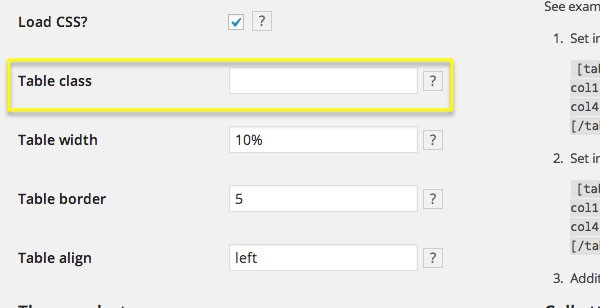
Table width – As you might have guessed, the option allows you to specify your table width, but you don’t want to rely on it too much because the value can be easily overridden by CSS in the actual table code.
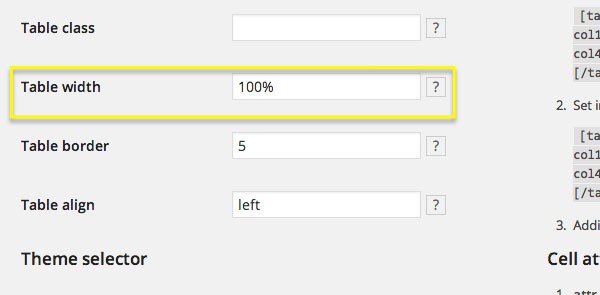
Table border – The table border option allows you to set your table border as you see fit. Just specify your value (say 5) and save your modifications.
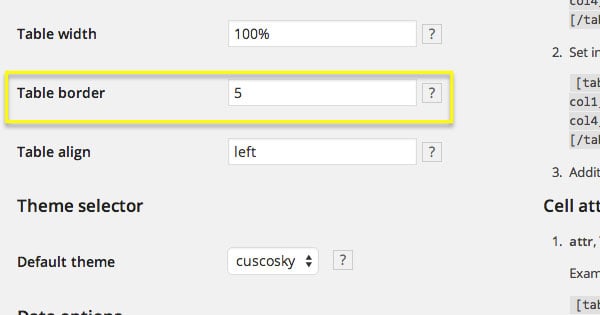
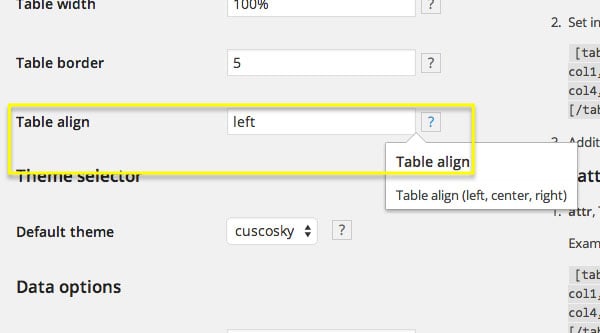
Table align – The name says it all here as well. You can left align, center or right align your table.
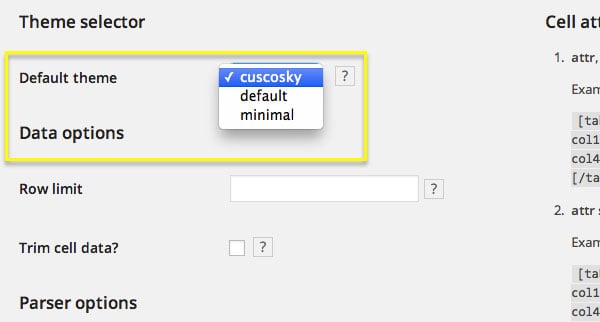
Default theme – You can use the Default theme dropdown menu to select your theme. Unfortunately, you can select just from 3 options, but it’s usually ok because you want to use table design consistently (the same throughout your whole site).
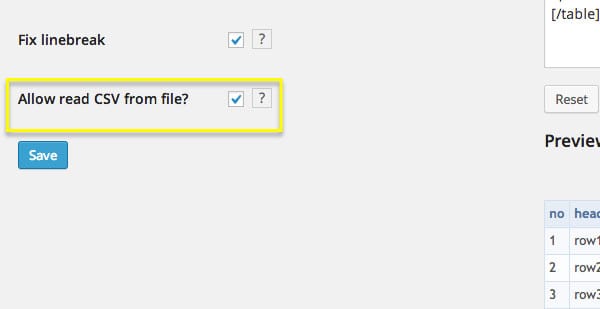
Allow read CSV from file? – The last thing that I’d like to highlight is the ability to load CSV files. Once you’ve ticked the ‘Allow read CSV from file?’ check box, you should be able to load content directly from your CSV files. Isn’t that awesome?
If you load your .CSV file and it looks wacky (rows and columns intermixed) in your post or page (something similar to this):
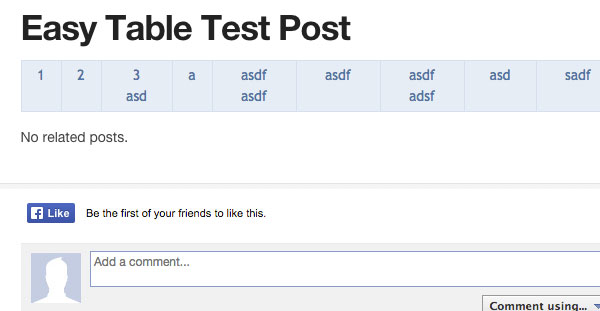
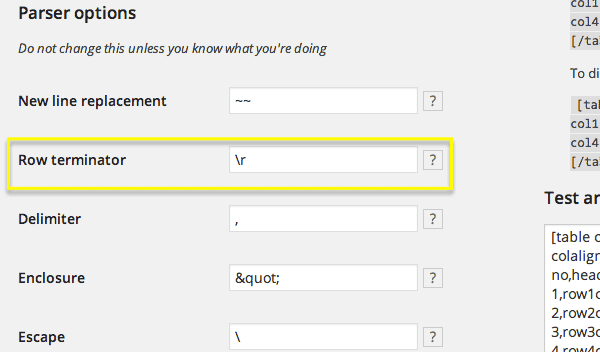
You need to change the value in your Row terminator text field. Just replace /n with /r and it should do the trick.
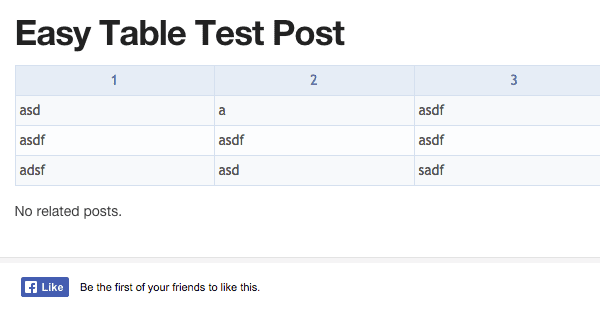
The fixed version looks as follows (in my case):
The rest of the settings are pretty advanced and you’ll need them only if you want to drastically edit the plugin. Since you need to be a programmer in order to do that, I’m sure that you’ll figure out how it works in that case 🙂
Links for More Info
You may want to go to this page and see all sorts of examples that give you a better picture of how you can use the plugin to display your table.
If you have any questions about the plugin, you also may want to use the plugin forum.
Buttom Line
All in all, it’s a really great plugin that allows you to easily create a table in WordPress. You want to install Easy Table if you don’t need any super duper customization options but rather just want to make it work out of the box.
Do you know any alternative WordPress plugins that do a better job when it comes to creating tables in WordPress?
Comments
10 responses to “How to Add a Neat Table in WordPress”
Great stuff! I used to do the whole shebang maually
Yeah, that’s amazing what you can do now with all the WP plugins out there.
I especially love the feature that allows you to read content from your .CSV file because I run a blog on stock exchange and I need to do that regularly. It looks like a miracle for somebody who doesn’t know how to code 🙂
Thanks for your comment, Diego! That’s right. I’m loving that feature as well.
I’m not really sure if it’s even possible but it would be just awesome if you could add a table without messing with any coding whatsoever. Would that be an option?
Thanks for the question, Jose, I guess it’s not yet available in the particular plugin but you may want to check back on it because many WordPress plugins get updated on a regular basis.
Do I install the plugin from the WordPress plugin directory or I need to upload it as a .zip file?
Really appreciate your question, Leila. As a rule of thumb, you want to install plugins right from your WordPress dashboard with the Search Plugins feature. That’s a safe bet for sure.
Thanks for the video. I’m not sure but others people you consume that sort of data, but I’m a big fan of video because it allows you to easily and time-efficiently wrap your head around a pretty complicated concept. I read the text before and was not sure about a few things, but after watching the video there was no stone unturned, so to put it )
That’s a lot for your genuine comment. As a matter of fact, I’m a big proponent of video stuff myself. With that in mind, we should also keep in mind that there are people that like textual content more. Plus search engines don’t really understand what’s in a video unless you explicitly feed textual content for that particular reason )